
Managing users in Merchant Portal is essential for maintaining secure and efficient access to your business tools.
This guide walks you through the steps to:
- Add new users
- Edit existing users
- Manage user permissions
- Manage user statuses
REMEMBER:
- Only users with MerchantAdmin or UserAdmin account types can complete these tasks.
- Users may be assigned one or more roles
- Roles can be added or removed at any time by someone with MerchantAdmin or UserAdmin designation

Guidelines
To ensure the security of your account assign roles that align with the user’s specific tasks and responsibilities. Review the recommendations for best practices below:
- Define Access Levels: Determine the level of access users require to fulfill their duties.
- Assign Appropriate Roles: Assign roles that grant access to necessary functionalities while ensuring data security.
- Regularly Review Permissions: Periodically review and update user roles to align with any changes in responsibilities or tasks.
- Educate Users: Ensure users understand their roles and responsibilities within the Xplor Pay applications.
Accessing User Management
- Log into Merchant Portal.
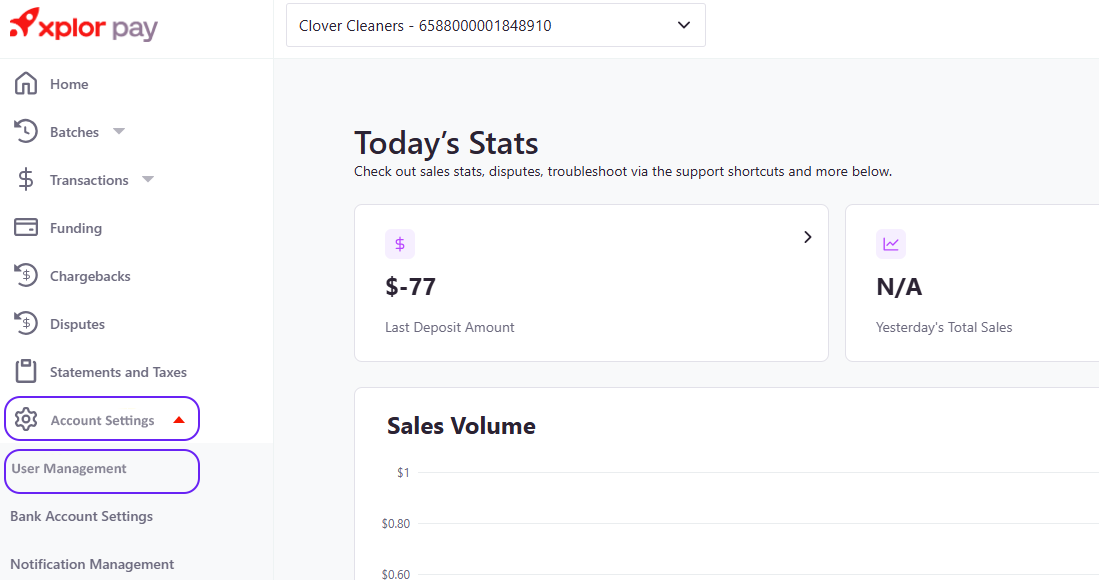
- Navigate to Account Settings > User Management from the left-hand menu.
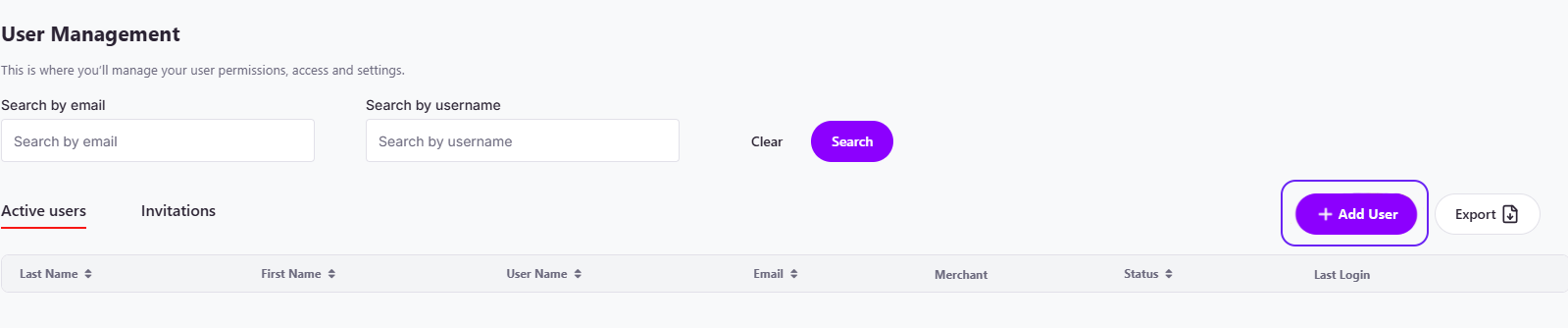
- The page will default to the Active Users tab, where you can search for users or add new ones. The Invitations tab will include any users who have started user registration but may not have completed it.
Adding a New User
- Click Add User.
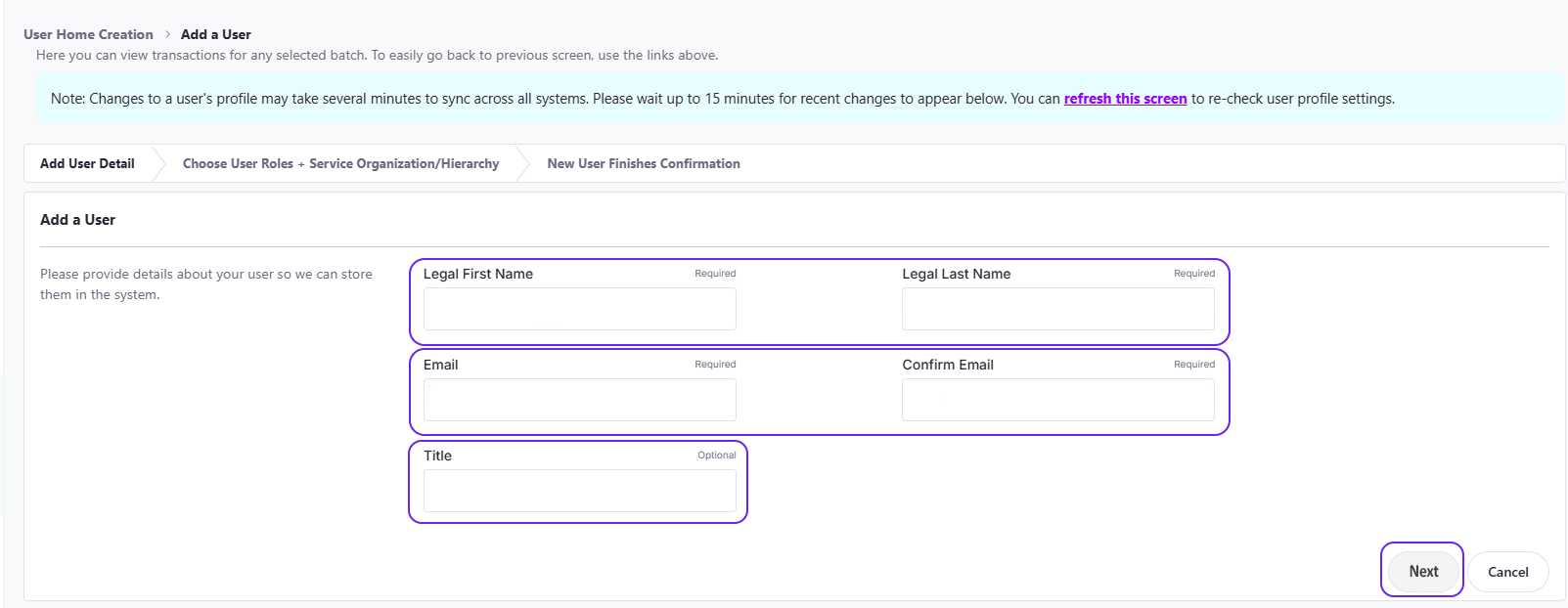
- Enter the user’s Name, Email, and optionally their Title.
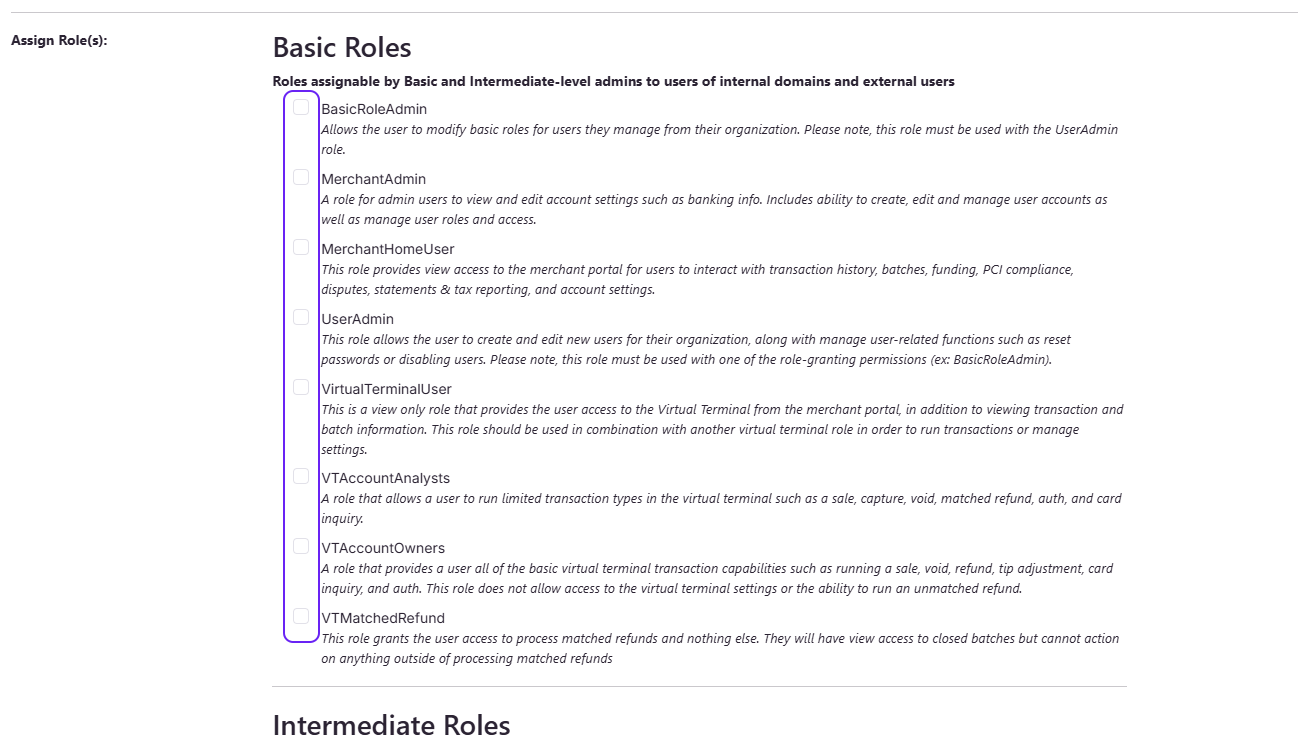
- Assign appropriate Roles:
- Basic roles can be granted by existing users.
- Intermediate roles require support intervention.
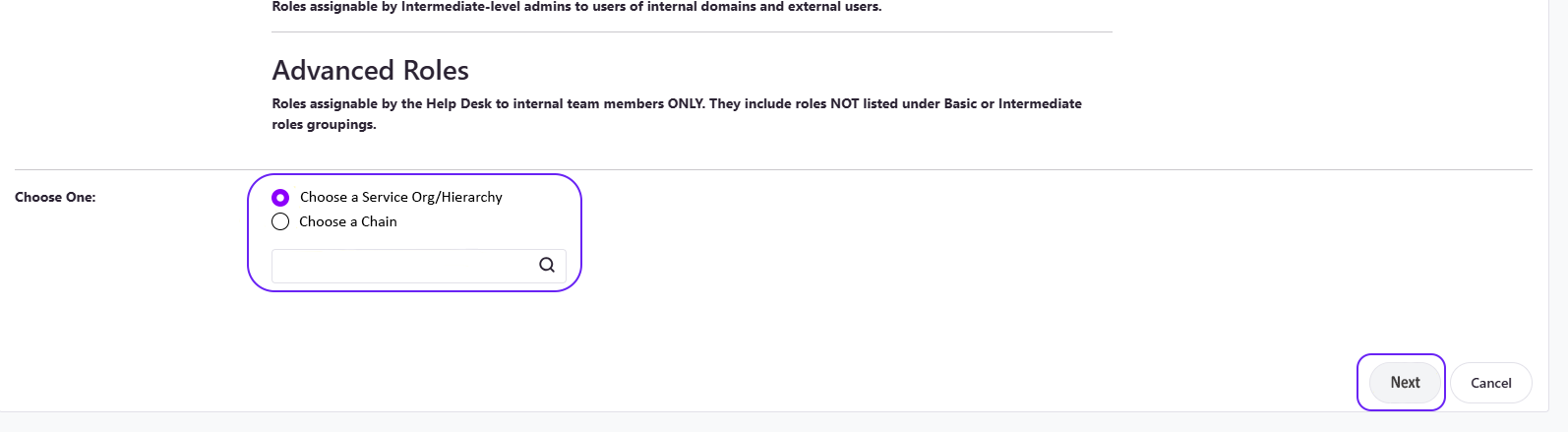
- Select the Merchant Account within the Service Org/Hierarchy the user should be associated with. This will create the user at your desired merchant location within the hierarchy.
- Note: The Choose a Chain option may be visible for some users and should generally be ignored unless specifically advised by Xplor Pay on how to use this functionality.
- Click Next to complete setup.
- A confirmation message will appear, and the user will receive a registration email to complete their profile and setup their login credentials. During the users registration process, for security reasons, they must enter the Merchant Number of the account they were added to. We suggest sending them a message with the merchant number so they can complete their registration.
- Users will receive an email to direct them to complete their profile.
- The user will create a username and password, enter the merchant number, and can modify any personal details.
- After saving the user account can take up to 1 hour to fully propagate through the system and they will receive a confirmation email once it’s completed.
Searching for Users
- Use the Search bar to locate users by email or username.
- To find users who haven’t registered yet, switch to the Invitations tab.
- You can filter by expiration date, status, and merchant number.
- To see all users, don’t include any search criteria and click the Search button.
Editing and Managing Existing Users
Once a search has been completed, a list of users will be displayed. Click the Actions button next to a user record to access management options:
- Edit User: Will open the edit user page where name, title and roles/permissions can be changed
- Reset Password: Will send an email to the user to reset their password
- Unlock User: If a users password has expired this option can be used to unlock the user without requiring them to reset their password.
- Disable/Enable User: Will disable the user from accessing the portal or re-enable them if already disabled
- Resend New User Email – Will resend the user creation email to finish the registration process
REMEMBER: If the user hasn’t registered, only the Resend New User Email option will be available.
Understanding Roles and Permissions
REMEMBER: Only users with MerchantAdmin or UserAdmin account types can manage user role permissions
There are several role types that determine what a user can do:
MerchantAdmin: A role for admin users to view and edit account settings such as banking info.
Users with this role can:
- View and manage PCI compliance information and status
- Add, edit, remove, or disable users
- Update banking information, including uploading documents and changing account numbers
- Manage notifications
- View and accept Xplor Capital offers
Users with this role cannot:
- Interact with the Virtual Terminal unless VirtualTerminal permissions are also assigned (including processing transactions, issuing refunds, or completing voids)
Considerations:
- This role allows users to edit banking account information, which could impact financial outcomes.
- To enable this role, the MerchantHomeUser role must also be added.
- It is typically paired with the following Virtual Terminal permissions: VirtualTerminalUser and VTAccountOwners.
MerchantHomeUser: This role provides view access to the merchant portal for users to interact with transaction history, batches, funding, PCI compliance, disputes, statements & tax reporting, and account settings.
Users with this role can:
- View transactions and transaction history
- View batch information and send batch reports
- Perform tip adjustments
- Send receipts
- View funding and deposit information
- View PCI compliance information and status
- View and respond to disputes
- View monthly statements and tax reporting documents
- View bank settings
- Manage their own MFA settings and notification preferences
- Export data
- Submit support tickets
Users with this role cannot:
- Interact with the Virtual Terminal without also being assigned a VT role
- Edit any information within the Merchant Portal that requires an Admin role
Considerations:
- This role is the foundation of all other account types and must be enabled for any user to interact with the Merchant Portal or Virtual Terminal.
- It can be used in conjunction with other permission settings.
VirtualTerminalUser: This is a view only role that provides the user access to the Virtual Terminal from the Merchant Portal, in addition to viewing transaction and batch information. This role should be used in combination with another Virtual Terminal role in order to run transactions or manage settings.
Users with this role can:
- N/A
Users with this role cannot:
- N/A
Considerations:
- This role is required for all other VT role types and must be enabled for any user to interact with the Virtual Terminal.
- It is not a standalone role and must be used with one of the following permissions: VTAccountAnalysts, VTAccountOwners, or VTMatchedRefunds.
VTAccountAnalysts: A role that allows a user to run limited transaction types in the Virtual Terminal such as a sale, capture, void, matched refund, auth, and card inquiry.
Users with this role can:
- Run sales
- Complete captures
- Run matched refunds
- Perform card inquiries
- Run transaction authorizations
Users with this role cannot:
- Edit or view information in the Virtual Terminal outside of their transaction capabilities
Considerations:
- This role must be added in conjunction with the VirtualTerminalUser role.
VTAccountOwners: A role that provides a user all of the basic Virtual Terminal transaction capabilities such as running a sale, void, refund, tip adjustment, card inquiry, and auth. This role does not allow access to the Virtual Terminal settings or the ability to run an unmatched refund.
Users with this role can:
- Run sales
- Complete captures
- Run matched refunds
- Perform card inquiries
- Run transaction authorizations
- Process voids and matched refunds
- Enter tip adjustments
Users with this role cannot:
- Run unmatched refunds
- Update Virtual Terminal settings
Considerations:
- This role must be added with the VirtualTerminalUser role.
- It allows users to make changes that could impact financial outcomes.
- An unmatched refund refers to a credit issued that is not directly tied to a previous transaction.
VTMatchedRefund: This role grants the user access to process matched refunds and nothing else. They will have view access to closed batches but cannot action on anything outside of processing matched refunds.
Users with this role can:
- Process matched refunds
Users with this role cannot:
- Complete any other transaction type besides refunds
Considerations:
- This role must be added with the VirtualTerminalUser role.
- If a user also needs to process transactions, they should be assigned the VTAccountOwners role instead.
- This role allows users to make changes that could impact financial outcomes.
UserAdmin: This role allows the user to create and edit new users for their organization, along with manage user-related functions such as reset passwords or disabling users. Please note, this role must be used with one of the role-granting permissions (ex: BasicRoleAdmin).
When combined with the MerchantHomeUser role, users can:
- Add, edit, remove, or disable users
Users with this role cannot:
- Update banking information or upload documents unless also assigned an admin-level role
Considerations:
- To enable this role, the MerchantHomeUser role must also be added.
- This role can modify all other user roles.